
Your inbox keeps you busy—but it doesn’t move your work forward, and if you’ve been searching for how to organize client emails, it’s usually because something keeps slipping through. A revision request is buried in one thread, a deadline change in another, and a quick “just one more thing” message quietly shifts the scope. You start writing, only to realize later that you missed something—and now you’re reworking what should have been done right the first time.
This isn’t an email problem. It’s a structural problem. Client work doesn’t slow down because there are too many messages—it slows down because the work inside those messages isn’t clear from the start. Until that changes, your inbox will keep pulling you back into the same loop of rereading, second-guessing, and revising.
Everything I’ve shared here—and more—is in my book, available on Amazon. Click the link if you’re ready to take the next step.
Why How to Organize Client Emails Is a Workflow Problem
Most inbox advice focuses on organizing messages, but client work doesn’t fail because emails are messy. It fails because the work inside those emails isn’t clearly defined. Until that changes, no system will hold.
The Real Problem Isn’t Your Inbox
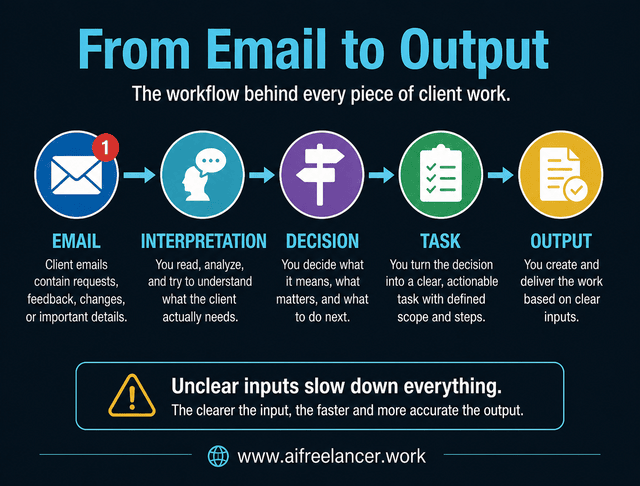
In client work, emails act as inputs that shape your output. Each message may contain instructions, revisions, approvals, or subtle changes that affect your deliverables. When those inputs remain buried in threads, your workflow slows down because you’re forced to interpret them repeatedly.
A simple way to see this is to follow the chain:
email → interpretation → decision → task → output
If the interpretation is unclear, every subsequent step becomes slower and less accurate. You end up second-guessing instructions and revising work that could have been right the first time.
This constant switching has a measurable cost. Research from Harvard Business Review shows that knowledge workers lose significant time to context switching, often several hours per week. Much of that switching starts in the inbox, where unclear inputs demand repeated attention.
Common Client Email Problems
- Revision requests are buried in long threads
- Vague feedback that requires interpretation
- Approval emails mixed with new instructions
- Scope changes hidden in ongoing conversations
- Missing assets, links, or deadlines
In real client work, these rarely show up neatly. You’ll often see feedback split across three emails, with one message contradicting another. If you don’t consolidate that into a single, clear set of actions, you end up rewriting the same section multiple times.
How to Organize Client Emails Without Rereading Threads
Most systems fail because they still require you to think every time you open an email. If you have to revisit a message to understand what to do, the system isn’t working—it’s just storing information.
Stop Rereading Emails
Traditional methods like folders, labels, or inbox zero help with storage and retrieval, but they don’t solve execution. You may know where an email is, but you still need to process it again.
If your current setup still feels overwhelming, it’s worth revisiting how to actually handle your inbox day-to-day instead of relying on folders alone.
Folders store messages, but they don’t clarify action. Labels make emails easier to find, but they don’t tell you what comes next. Even inbox zero can create a false sense of control, where everything looks organized but nothing is actually defined.
A clean inbox is useless if the work is still unclear. The inbox should not be your task manager—it should be the place where tasks begin.
What Makes an Email Actionable
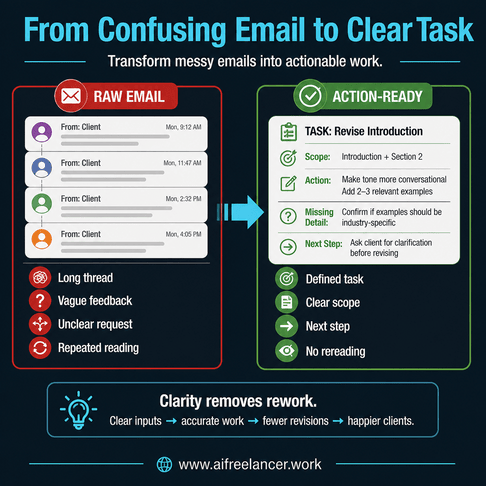
An email becomes useful only when it no longer requires interpretation. Instead of leaving it as a message, you convert it into something you can act on immediately.
Here’s a simple before-and-after:
Before (raw email):
“Can we make this sound less formal and add more examples?”
After (action-ready):
- Task: Revise tone to be more conversational
- Scope: Introduction + Section 2
- Add: 2–3 relevant examples
- Missing detail: Confirm if examples should be industry-specific
- Next step: Ask the client for clarification before revising
Here’s a more realistic scenario:
Thread across three emails:
- Email 1: “Can we make the intro shorter?”
- Email 2: “Also, the tone feels too formal.”
- Email 3: “We might need to reposition this for beginners.”
Action-ready version:
- Revise introduction (shorten by ~30%)
- Adjust tone across intro and section 1 (more conversational)
- Reposition the intro for a beginner audience
- Confirm the target audience level before rewriting
This is where most time is lost—not in writing, but in figuring out what the client actually wants.
How to Organize Client Emails Into Clear Tasks and Drafts
Organizing emails is not the end goal. The goal is to remove hesitation when you start working. That only happens when every message has already been translated into something you can execute.
Turn Emails Into Tasks
Instead of managing emails as messages, treat them as raw material for your work. Each email should be converted into a task, a brief, or a checklist that reflects what actually needs to be done. This removes ambiguity and allows you to focus on execution.
When feedback is vague, break it down. When instructions are incomplete, identify what’s missing. When scope changes appear, separate them from the original request. This ensures that what you work on reflects what the client actually needs.
Deliver Faster With Clearer Inputs
When emails are structured before you begin working, the entire delivery process becomes smoother. You spend less time clarifying instructions mid-draft and more time producing focused output.
This leads to fewer revision cycles and clearer communication with clients. Instead of reacting to feedback after the fact, you’re working from defined instructions from the start.
Research from MIT Sloan shows that structured workflows can improve task completion speed by up to 40 percent. In practice, that improvement comes from starting with clear inputs instead of figuring things out mid-draft.
If you want to extend this beyond email handling, this is where a structured AI workflow for freelance work starts to make a real difference.
The 3-Lane System for Client Email Sorting
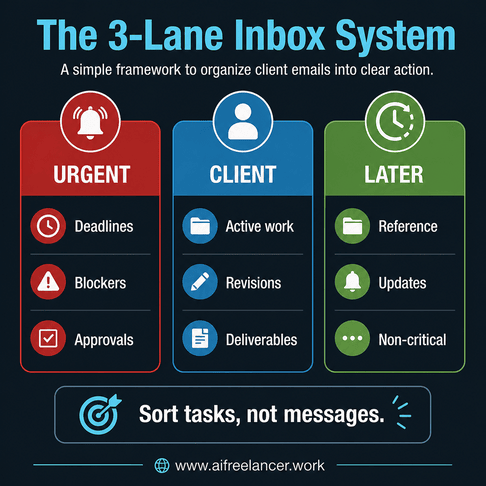
Once the work is clear, sorting becomes easy. You’re no longer deciding what an email means—you’re deciding where the task belongs.
Sort Tasks, Not Messages
A simple three-lane system removes guesswork:
- Urgent → immediate action
- Client → active work and deliverables
- Later → non-essential or reference
What Goes in Each Lane
Urgent includes deadlines within 24–48 hours, blockers that stop progress, and approvals needed before delivery. The client lane holds active briefs, revision requests, and ongoing work. The latter lane is for information that does not affect the current output.
Some situations require judgment:
- If a task is both urgent and client-related, it goes to Urgent
- If a message is unclear, it should not be sorted yet—clarify first
- If feedback is spread across multiple emails, combine it into one task
- If an email has no action, archive it
A common mistake is treating “Later” as a dumping ground. In practice, it becomes a second inbox that never gets processed.
Common Sorting Mistakes
- Over-labeling instead of deciding
- Treating all emails as equally important
- Leaving messages unprocessed without turning them into tasks
If prioritization still feels unclear, it helps to understand how to reduce email decision fatigue, so you’re not re-evaluating every message repeatedly.
A 10-Minute Daily Process for Client Email Organization
A system only works if you can apply it consistently. This process is designed to be short enough to repeat daily, but structured enough to prevent a backlog.
Process Your Inbox Fast
- Step 1: Scan for deadlines and blockers so you can protect delivery timelines
- Step 2: Move urgent items into immediate action to avoid delays
- Step 3: Define the work from each client email using clear action steps
- Step 4: Assign tasks to the correct lane based on priority
- Step 5: Identify missing details before starting work to prevent rework
- Step 6: Defer or archive anything not tied to active work
Each step prevents a specific problem. Skipping step 3, for example, is where most confusion starts.
This process works even better when paired with a simple four-category task system that keeps your priorities consistent outside the inbox.
How AI Can Support Client Email Organization
AI becomes useful when it reduces the effort of understanding emails, not when it replaces your judgment. The goal is to remove friction, not control decisions.
Use AI to Extract the Work
AI can help you process complex threads quickly, especially when feedback is spread across multiple messages.
Examples:
- Summarize long threads into key points
- Extract tasks across replies
- Separate revision requests from new scope
- Identify missing information before drafting
More targeted prompts:
- “Which parts of this email are actual revision requests?”
- “Which comments are preferences and not required changes?”
- “What needs a client reply before I start editing?”
- “Turn this thread into a step-by-step revision checklist.”
In practice, AI outputs are not always clean. It may group unrelated comments or miss nuance. This is where experience matters—you compare the output to the original message and adjust before using it.
AI should not decide priorities, interpret tone, or finalize communication.
How to Keep Client Email Organization Simple After Week One
Most systems fail after the first few days because they become harder to maintain.
Keep the System From Breaking
Common failure points include:
- Adding too many categories
- Skipping the daily process
- Using the inbox as a task manager
- Leaving vague emails unresolved
- Letting the “Later” lane accumulate clutter
To avoid this, keep the system simple. Stick to three lanes, process emails daily, and define the work immediately.
Final Thoughts
You don’t need a better inbox. You need emails that translate directly into tasks.
Once you understand how to organize client emails, the shift becomes practical. Messages are no longer something you manage repeatedly. They become defined work that guides your workflow from the start. That clarity reduces revisions, improves communication, and helps you deliver faster without second-guessing your work.
If your inbox is where your writing work begins, it makes sense to build the rest of your workflow with the same structure.
If you want to take this further, I break down full AI-supported writing workflows in my books—from inbox to draft to final delivery.
Frequently Asked Questions About How to Organize Client Emails
Start by converting each email into a clear task with defined actions. Then assign it to a simple priority system so you know what to work on first without rereading messages.
Focus on structure, not storage. Extract the work from each email once, then organize those tasks instead of managing messages repeatedly.
Freelancers can reduce overload by processing emails daily, turning them into tasks immediately, and using a consistent prioritization system.
Folders and labels help with storage, but they don’t define action. They should support your workflow, not replace task-based organization.
Yes, AI can summarize threads, extract tasks, and identify missing details. However, final decisions and prioritization should always be handled manually.

Florence De Borja is a freelance writer, content strategist, and author with 14+ years of writing experience and a 15-year background in IT and software development. She creates clear, practical content on AI, SaaS, business, digital marketing, real estate, and wellness, with a focus on helping freelancers use AI to work calmer and scale smarter. On her blog, AI Freelancer, she shares systems, workflows, and AI-powered strategies for building a sustainable solo business.