

You’re not missing deadlines because you’re lazy. You’re drowning in pings, tabs, and client “quick asks.” The real cost isn’t time, it’s attention. In open-plan environments, research tracking real knowledge work found people average about 12 minutes 40 seconds on a task before getting interrupted—and it can take about 25 minutes 26 seconds to return to the same task. This guide demonstrates how AI productivity apps can streamline busywork, protect your focus, and help you deliver polished drafts more efficiently without complicating your workflow.
Everything I’ve shared here—and more—is in my book, available on Amazon. Click the link if you’re ready to take the next step.
AI Productivity Apps for Freelance Writers: What They Do
You don’t need ten new tools—you need one helper that cuts busywork now. This section demonstrates how AI business tools and productivity apps summarize, draft, and schedule, enabling you to focus on writing.
Quick Wins for Beginners
If you’re new to AI, start with one live task you already do today. Use an AI note-taker to record your next client call and generate a summary you can paste into your brief. Give the assistant a working title and 3–5 key points. It returns a clean, hierarchical outline, and you still shape the voice—no more blank page. When the call ends, ask a task assistant to turn your notes into dated to-dos and add them to your calendar without extra clicks.
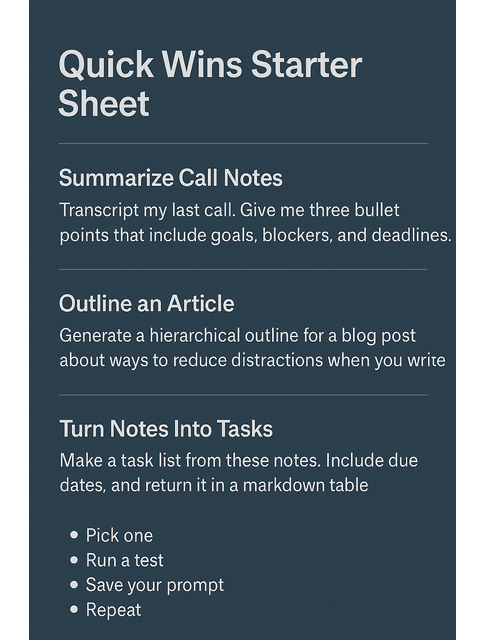
Core Capabilities: Summaries, Drafts, Schedules
Most helpers fall into three categories: research assistants (condensing sources), writing helpers (generating draft material that you refine), and workflow aides (turning plain language into schedules). Research assistants condense long articles, PDFs, and transcripts into crisp takeaways with quotes and links so you stop drowning in tabs. Writing helpers draft first-pass intros, section transitions, FAQs, and meta descriptions that you refine into your tone. Workflow aides parse plain language—“first draft Friday, edit Monday, delivery Tuesday”—into calendar events and reminders that keep a project moving. With guardrails in place, the next step is straightforward: select one job in your workflow and pair it with a corresponding tool.
Risks to Watch: Hallucinations, Privacy, Overreach
Keep a few guardrails in mind as you ramp up. Verify facts and stats, especially when a tool can’t show sources. Keep sensitive client details out of consumer accounts or anonymize them to protect confidentiality. Use AI to generate options; you decide angle, structure, and voice.
Choosing Tools That Fit: Where AI Productivity Apps Belong
Random installs create more noise than results. Here you’ll map your workflow and place the right tool at the right step to remove rework and context switching.
Map Your Writing Workflow End to End
Sketch the process from intake to invoice. Circle the loud or slow steps. Add one tool to one choke point for a week.
Workflow Map Template
Use this to place one AI assist at one choke point for a week. Keep descriptions short and action‑oriented.
| Stage | What You Do Now (1–2 lines) | Pain / Bottleneck (specific) | Desired Outcome | AI Tool to Test |
|---|---|---|---|---|
| Intake | ||||
| Research | ||||
| Outline | ||||
| Draft | ||||
| Edit | ||||
| Deliver |
Filled Sample
Scenario: 1,200‑word client blog post with a 5‑day turnaround.
| Stage | What You Do Now (1–2 lines) | Pain / Bottleneck (specific) | Desired Outcome | AI Tool to Test |
|---|---|---|---|---|
| Intake | 30‑min call + email brief. Notes in Google Docs. | Miss key details; action items get buried. | Clean H2/H3 outline aligned to the brief. | AI note‑taker that outputs bullets + action items. |
| Research | Skim 4–6 sources; paste quotes into doc. | Too many tabs; forget what to cite. | 5‑bullet summary per source with quotes + links. | AI summarizer with source links/export. |
| Outline | Draft H2s; decide structure later. | Blank‑page stall; sections drift. | Clean H2/H3 outline aligned to brief. | Outline generator with style constraints. |
| Draft | Write in Docs; jump out for look‑ups. | Context switching slows momentum. | Continuous drafting with in‑doc look‑ups. | In‑editor AI assistant for transitions/examples. |
| Edit | Self‑edit for clarity and tone. | Miss small consistency issues. | Fast checklist pass (order, tense, repetition). | AI checklist/reviewer; human final pass. |
| Deliver | Email update with link. | Long back‑and‑forth; unclear next steps. | Short status with next deliverable + date. | AI status composer (turn bullets → 4‑sentence update). |
How to use the sample: Start with the biggest bottleneck (for most, Research or Outline). Test the AI Tool for one week on real work. Keep only what saves time or reduces revisions; otherwise, revert and try the next stage.
Workflow Mapping With AI Productivity Apps
Place tools where work bottlenecks exist, then test on a live project. Run pre-reads through a summarizer before outlining. Use an outline template that ensures each H2 has a clear purpose and objective. Capture client feedback with a transcript that automatically generates a tidy revision list. Pair these with a focus app so you stay inside the draft instead of slipping back to the browser.
Budget vs. ROI: Free, Pro, and Client Value
Upgrade only when you’re consistently saving 30–60 minutes per week or cutting a revision cycle; until then, stick to free tiers. Track value in plain language—faster turnarounds, clearer updates, fewer edits, higher first-pass acceptance. Those outcomes justify paid plans and, over time, support higher rates or retainer offers. Once your stack fits the workflow, protect the time it takes to run.
Protect Your Focus: Reduce Noise With AI Productivity Apps
Distractions aren’t just annoying; they drain momentum. Microsoft’s Work Trend Index research reports that employees are interrupted, on average, every two minutes by a meeting, email, or notification—exactly the kind of fragmentation that kills draft momentum. Learn how to pair blockers, timers, and smart notifications, so your best attention stays on the draft.
Attention Systems: Time Blocks and Deep Work
Anchor your day with short, fully protected work windows. Two twenty-five-minute sprints beat two hours of half-attention. During each sprint, let AI handle quick look-ups, synopses, or small rewrites so your cursor keeps moving. Close the window with three short lines—what moved, what’s next, what’s blocked. That tiny reflection prevents “just one tab” detours.
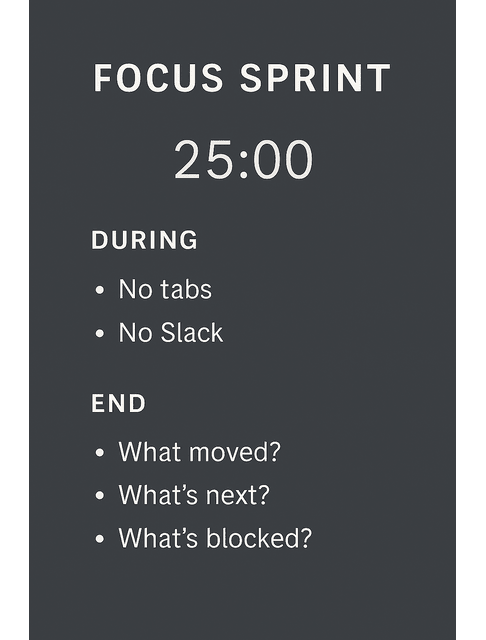
Stacking Tools: Blockers, Timers, and AI Productivity Apps
Support the habit with a simple stack: a blocker removes temptation, a timer sets the finish line, and a drafting helper turns rough ideas into clean transitions when you stall. Keep notifications in their lane with Do Not Disturb during sprints and batch Slack and email at set times.
Notification Hygiene: DND, Batching, and Boundaries
When you owe a client an update, ask AI to transform your progress notes into a concise status report that clearly states your current progress, what you need, and the next deliverable with a specific due date. You’ll cut back and forth, keeping your best energy for the writing. When the focus windows run smoothly, lock in repeatability.
Scale Output With Automation and AI Productivity Apps
When your process repeats, automate it. Utilize templates, integrations, and light QA checks to ship on packed client weeks consistently.
Templates and Prompts That Speed Delivery
Capture the steps that work and turn them into reusable prompts. Keep a “Brief Builder” to extract goals, audience, tone, and deadlines; an “Outline Style” prompt for clear H2s with actionable H3s; a “Client Update” prompt for a four-sentence status; and a “Revision Request” prompt that lists changes by section. Tuck these into Notion or Google Docs and link them to your project template so you never start from scratch.
| Card | Purpose (When to Use) | Fill-In Fields | Copy-Paste Prompt (edit the [brackets]) | Expected Output |
|---|---|---|---|---|
| Brief Builder | Before drafting the lock structure and reduce rewrites | [project goal], [target audience], [tone], [key messages], [deadline], [links/notes] | “From these notes, create a one-page brief with sections: Goal, Audience, Tone, Key Messages, Constraints, Milestones, Deadline. Use bullets. Keep it to 150–200 words. Notes: [paste notes].” | One tidy page with bullets you can paste into the project doc |
| Outline Style | During production, to reduce back-and-forth and set expectations | [working title], [primary keyword], [sections needed], [examples to include], [CTA] | “Outline an article titled ‘[working title]’ for beginner freelance writers. Provide H2s with 2–3 H3s each. Include: a pain point, a simple how-to, one concrete example per section, and a CTA. Target keyword: [primary keyword]. Constraints: [sections needed].” | Clean H2/H3 outline aligned to goals and SEO |
| Client Update | After reviewing the translation feedback into a checklist | [current %], [what’s done], [what’s next], [what I need], [date/time of next deliverable], [doc link] | “Turn these bullets into a 4-sentence client status in plain English: 1) progress: [current %] and what’s done, 2) what’s next by [date], 3) what I need (if anything), 4) link to the working draft: [doc link]. Keep it concise and friendly.” | A short, professional status message ready to send |
| Revision Request | Before drafting the lock structure, reduce rewrites | [client comments], [sections affected], [due date], [style/tone constraints] | “Create a revision checklist from these comments. Group by section (H2/H3). For each item, include a checkbox, the requested change, and a short acceptance criteria line. Keep it actionable and unambiguous. Comments: [paste client comments]. Due: [due date].” | A section-by-section checklist you can work through and check off |
Integrations: Notion, Trello, Zapier, Docs
Connect your tools so hand-offs happen without manual copying. Marking “Outline Approved” on a Trello card can automatically generate a draft document from your template, assign due dates, and attach the link to the card. When the project closes, archive the final draft, the prompts you used, and simple metrics such as time saved and the number of revision rounds. Over time, you’ll see which assists matter most, and you’ll spend more hours writing and fewer hours wrangling files.
AI Productivity Apps for Quality Control
Quality control remains in your hands, but AI can speed up the checklist. Generate headline variations that match the intent and style, then select and refine them. Request a quick review of tense, voice, and section order, and consider suggestions as guidance for further review. Request a link-and-claim checklist, then verify each item yourself. Read the final aloud; if anything snags, fix it. AI makes the checks faster; you decide what good looks like.
Final Thoughts
You don’t need more willpower—you need fewer decisions. Start with one or two AI productivity apps. Pair them with a blocker and a timer, and guard a daily focus window. Verify any factual information because task-switching and rapid context shifts carry measurable performance costs—APA notes research suggesting switching can cost as much as 40% of productive time. Reuse the prompts that work, and continue iterating your process in small, steady steps. Those small changes compound into consistent delivery and calmer workdays.
If you want plug-and-play prompts, lightweight workflows, and ready-to-use templates you can drop into your week, explore my books on my Amazon Author Page. You’ll find practical guides built for freelancers who want less admin, cleaner systems, and more focused writing time.
Frequently Asked Questions About AI Productivity Apps
These tools condense research, draft passages, organize schedules, and capture notes, allowing you to spend more time writing and less on administrative tasks. Refer to the first section for an explanation of how they integrate into real-world client work.
There isn’t a universal winner. Match the tool to the job—research, writing, scheduling, or automation—test it on one live project for a week, and keep it only if it consistently saves real time (think ~30–60 minutes per week).
Protect short work windows with a blocker and a timer, and let AI handle quick look-ups and summaries so you remain in the draft. The focus section above walks through the routine.
Yes—when savings are consistent. Start free and upgrade once you’re regularly saving 30–60 minutes a week or cutting a revision cycle.
Unverified facts, privacy exposure, and over-automation. Request sources, keep sensitive details out of consumer accounts, and reserve strategic decisions for your judgment.

Florence De Borja is a freelance writer, content strategist, and author with 14+ years of writing experience and a 15-year background in IT and software development. She creates clear, practical content on AI, SaaS, business, digital marketing, real estate, and wellness, with a focus on helping freelancers use AI to work calmer and scale smarter. On her blog, AI Freelancer, she shares systems, workflows, and AI-powered strategies for building a sustainable solo business.


Pingback: Cloud Storage Best Practices: Organize Your Workflow - The AI Freelancer