
You are not disorganized. You are carrying too many files, versions, and links across too many apps. The result is lost drafts, duplicated folders, and slow handoffs. McKinsey Global Institute estimates that the average “interaction worker” spends nearly 20% of the workweek looking for internal information or tracking down colleagues who can help. This guide presents a simple system that pairs cloud storage best practices with beginner-friendly AI, enabling you to find the right file in seconds, share it safely, and move work forward without guesswork.
Everything I’ve shared here—and more—is in my book, available on Amazon. Click the link if you’re ready to take the next step.
Cloud Storage Best Practices for Smart Folder Structures
Your files are not lost; they are hiding in a maze you never meant to build. A simple, repeatable folder map turns scattered work into a system you can trust, and AI business tools can help you label, sort, and retrieve what you need faster without adding more chaos.
Why a Simple Folder Map Beats More Tools
Start with three top-level folders: Clients, Assets, and Admin. In each client folder, add Briefs, Drafts, and Final. A clear map reduces search time and prevents mix-ups when you hand off files for review. That matters because “searching for internal information” isn’t a small leak; it can consume a meaningful chunk of the workweek at scale.
Build a Client-First Hierarchy You Can Reuse
Create a single client template and reuse it for every engagement to ensure consistency in structure and permissions. In Google Drive, save a template folder that includes subfolders and readme notes. In Dropbox and OneDrive, create a master folder you can copy. Consistency lets teammates and clients understand your structure immediately, which speeds up collaboration.
Shared Versus Private Spaces
Keep Briefs, Drafts, Final, and Review-Assets in a shared space for collaboration. Keep contracts, invoices, and personal notes inside /Admin, accessible only to you.
Use a Naming Schema That Sorts Itself with Cloud Storage Best Practices
Adopt a pattern like YYYY-MM_Client_Project_V1.ext. Leading with the date keeps files in order. Include the client and project so the search works well. Add V1, V2, or Final only in the Final folder to avoid confusion. This schema works across Drive, Dropbox, and OneDrive and plays nicely with search filters and metadata.
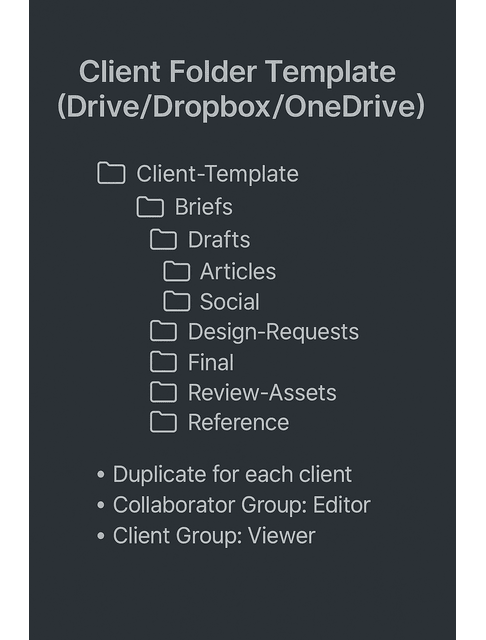
Mini SOP: Create and Reuse a Client Template (Google Drive)
- Create a Shared Drive named “Clients.”
- In that drive, create a folder “_Client-Template” with subfolders Briefs, Drafts, Final, Review-Assets, and Reference.
- Share the template: add your collaborator group as Editor and your client group as Viewer.
- Duplicate the template for each new client, rename it, and confirm permissions.
With the folders ready, the next clarity boost comes from names that sort themselves.
File Naming That Works with Cloud Storage Best Practices
Search fails when every file tells a different story. A clear, sortable pattern enables both humans and AI to find the right draft quickly.
Make Names Readable and Sortable
Keep names short, consistent, and meaningful. Use ISO dates. If your team prefers it, use underscores instead of spaces. Avoid filler words. Clear names let lists sort themselves and keep mobile views readable. Clean patterns also reduce errors when files move through automation or project management tools.
Naming Pattern Examples
| Asset Type | Pattern Example |
| Blog Article | 2025-11_Acme_Blog-Repurposing-Guide_V1.docx |
| Social Batch | 2025-11_Acme_Social-Q4_Short-Posts_V2.xlsx |
| Client Brief | 2025-11_Acme_Content-Brief_Landing-Page.pdf |
| Invoice | 2025-11_Acme_Invoice_00087.pdf |
Length and Characters
Keep names under 80 characters and avoid # % & { } \ / : * ? ” < > | to prevent sync issues.
Move Work from Brief to Draft to Final with Zero Chaos
Match your folder names in your file titles: 2025-11_Acme_Blog-Brief, 2025-11_Acme_Blog-Draft, 2025-11_Acme_Blog-Final. When a draft becomes final, move it into Final instead of renaming files inside Drafts. Your future self will thank you when you audit work or prepare case studies.
Let AI Handle Renaming and Tagging at Scale
Use an AI assistant to batch-rename old files to your schema and add tags such as client, status, and content type in supported tools. Start on a small test folder, review the results, then run it on larger collections. You will standardize months of messy archives in minutes.
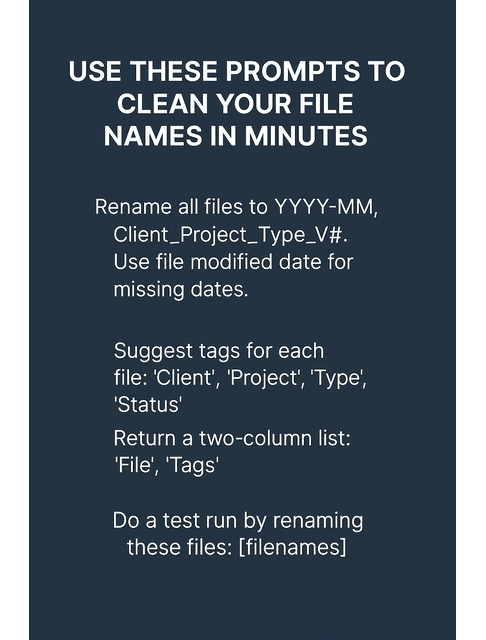
AI Helper Starters for Naming and Tags
- Batch rename: “Rename files in this folder to YYYY-MM_Client_Project_Type_V#. Use the file modified date if no date exists. Keep extensions. Do not change already-compliant names.”
- Tag suggestion: “Based on file names, propose tags for client, content type, and status. Return as a two-column list: File, Tags.”
Once files are named, protect the workspace with simple, reusable sharing rules.
Permissions, Sharing, and Security: Cloud Storage Best Practices
Collaboration breaks when everyone can edit everything. Set lean defaults and grant access on purpose.
Set External Sharing Rules with Cloud Storage Best Practices
At the top client folder, give clients “Viewer” access. Grant “Editor” only to collaborators who create or revise content. Avoid public links unless a project truly needs them. In Google Drive and OneDrive, use “Restricted” by default and allow “Anyone with the link can view” only when required.
Use the Principle of Least Privilege
Give people only the access they need. Review membership on a monthly basis or at project close. Remove former clients and temporary collaborators. This protects sensitive files, such as contracts, invoices, and private briefs, without slowing down daily work.
Protect Sensitive Material with Layered Security
Turn on two-factor authentication. Google’s security research found that adding a recovery phone number can block up to 100% of automated bots, 99% of bulk phishing attacks, and 66% of targeted attacks in their study—exactly the kind of low-effort protection worth standardizing in your client storage stack.
Permission Matrix (Starter)
| Folder | Clients | Collaborators | You |
| /Clients/Acme | Viewer | Editor | Owner |
| /Clients/Acme/Final | Viewer | Editor | Owner |
| /Admin | No Access | No Access | Owner |
Link Scope Rules and Expiration
Use Restricted for active working docs. When you share final deliverables widely, use view-only links, set them to expire in 7 or 14 days, and record the expiration in your handoff log.
Offboarding Checklist
Remove external emails from the top client folder, replace public links with ‘Restricted’, zip and deliver the Final and Reference Files if promised, and record the handoff date and license notes in a simple log.
Mini SOP: Weekly Backup and 90-Day Retention
Back up the Clients and Admin to a second location every Friday. Keep weekly backups for 12 weeks. After 90 days, archive only the Final and Contracts unless the contract requires longer retention. Track backups in a sheet with the following details: Date, Scope, and Notes.
With access set, keep work moving with version history and light AI support.
Versioning and AI Collaboration with Cloud Storage Best Practices
Ten copies of the same document do not equal control. Keep one live file and use suggestions for edits.
Recover Drafts Fast with Clean Version History and Cloud Storage Best Practices
Use Suggesting or Track Changes for edits. When a major change ships, create a checkpoint copy and label it clearly, for example, 2025-11_Acme_Blog_V1-Approved. This avoids ten near-identical files and makes rollbacks simple.
Version Checkpoints SOP
- Draft to internal review.
- Client first pass.
- Client approval.
- Publication handoff.
At each checkpoint, create a named version and label it like V1-Approved-2025-11-05.
Restore Workflow
If a client requests a rollback, open the Version History, select V1-Approved-2025-11-05, compare the changes, and restore it as a new named version, V1-Restored-2025-11-12.
Use Comments and Suggestions for Review, Not Email
Centralize feedback in the document. Mention reviewers, assign tasks, and resolve threads only when the change lands. If you must export to Word, re-import the approved version and archive the attachment to keep the record in one place.
Automate Backups and Retention So You Never Lose Work
Schedule automated backups to a secondary location, such as an external drive or a Dropbox account, to ensure data protection and redundancy. Apply the 90-day retention described in the Backup SOP above.
AI Helper Starters for Collaboration
- Comment summary: “Summarize unresolved comments into a checklist grouped by stakeholder. Include requested changes and owner names.”
- Backup labeling: “Generate a one-line description for this backup batch based on folder names and dates for my backup log.”
Final Thoughts
You don’t need more tools, but a workflow that makes choices easy and moves work along faster. Map your folders, name files consistently, set strict permissions, and maintain straightforward versioning. Let AI do the grunt work for renaming, tagging, and backups. With a clean setup and consistent rules, cloud storage best practices become real-time savings.
If you’re looking for step-by-step folder maps, naming rules, and AI-assisted workflows that you can apply immediately, explore my books on my Amazon Author Page. They’re built for freelancers who want cleaner systems, faster retrieval, and less time wasted hunting for files.
Frequently Asked Questions About Cloud Storage Best Practices
Create a reusable client template with subfolders for Briefs, Drafts, and Final. Keep one live doc per deliverable and rely on version history.
Use a consistent pattern for dates, clients, projects, and versions, for example YYYY-MM-Client-Project-V1. Keep names short and meaningful.
Use built-in version history, comments, and suggested mode. Save checkpoint copies only at major approvals to simplify rollbacks.
Use the principle of least privilege, prefer viewer links for clients, enable two-factor authentication, and consider encryption for sensitive files.
Select the service that best suits your stack. Google Drive integrates with Workspace for real-time editing, OneDrive pairs with Microsoft 365, and Dropbox excels at cross-app file sharing.

Florence De Borja is a freelance writer, content strategist, and author with 14+ years of writing experience and a 15-year background in IT and software development. She creates clear, practical content on AI, SaaS, business, digital marketing, real estate, and wellness, with a focus on helping freelancers use AI to work calmer and scale smarter. On her blog, AI Freelancer, she shares systems, workflows, and AI-powered strategies for building a sustainable solo business.