
A potential client submits an inquiry, but the request never appears in your project tracker. You discover it days later, even though your automation seems to be working. Without regular workflow monitoring, you’re left searching through emails and form submissions, wondering what else slipped through the cracks.
A short weekly review helps you catch missing executions, incorrect outputs, and broken connections before they disrupt your work. You don’t need to inspect every automated task daily. Here’s how to build a simple monitoring routine that fits your freelance workload.
Everything I’ve shared here—and more—is in my book, available on Amazon. Click the link if you’re ready to take the next step.
What Is Workflow Monitoring and Why Does It Matter?
Workflow monitoring is the process of checking whether automated tasks run as expected and produce the correct results. For freelancers, it can involve reviewing execution histories, checking outputs, and identifying missed or failed tasks.
How Workflow Monitoring Works
Suppose a prospective client submits an inquiry form with their project requirements and requested deadline. Your automation should create a project tracker entry containing those details and send you a notification.
Before monitoring a workflow, define what a successful result should look like. For this client inquiry automation, that means exactly one complete project record for every eligible submission, along with the correct notification. If you’re still building your system, start with simple automation systems that are easy to maintain before adding more complicated processes.
Monitoring involves checking whether the form submission triggered an execution and whether the project entry and notification were created correctly. Following a clear trigger, action, and expected output makes it easier to identify which part of the process failed. When you discover a problem, maintenance involves investigating and correcting it.
Why Automated Workflows Need Regular Checks
A missing project entry can leave a client waiting for your response. An incomplete record can cause you to overlook a deadline or begin work with incorrect information.
A 2026 Zapier survey of more than 500 small-business owners and operators found that 74% of respondents who had adopted automation relied on automated processes daily or used them for many core business activities. The more your work depends on automation, the more important it becomes to check that critical results actually arrive.
Weekly checks help you uncover missing or incorrect results before they affect additional tasks. For time-sensitive automations, use immediate alerts or more frequent monitoring.
What Should You Check During Workflow Monitoring?
An automation platform may report a successful execution even when the final result contains incorrect information. The execution status tells you how the platform evaluated the run, but you still need to determine whether the workflow accomplished its intended task.
Effective workflow monitoring focuses on four areas that reveal different kinds of problems.
Workflow Execution and Failed Triggers
A failed run begins but encounters an error or doesn’t complete successfully. A missing run occurs when a scheduled task or an event that meets your automation’s trigger conditions produces no recorded execution.
For scheduled tasks, compare the expected schedule with execution history. For event-triggered workflows, compare eligible source events with recorded runs.
Output Accuracy and Task Completion
A workflow can complete successfully while producing an incomplete or incorrect result. For example, a client inquiry includes a requested deadline, but the project tracker entry leaves that field blank.
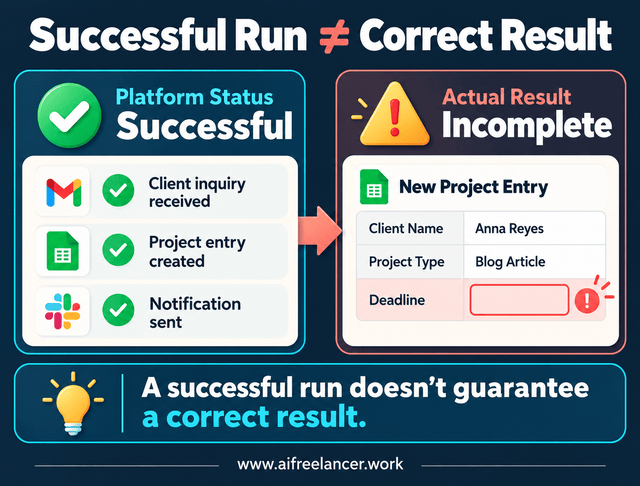
Check important fields, AI-generated content, destinations, and notifications against the original requirements. If information is missing or appears in the wrong place, check whether the source fields and connected applications still match the workflow’s configuration.
Integrations, Connections, and Permissions
Disconnected applications, expired authorizations, and changed settings can interrupt automated workflows. A renamed form field or changed project tracker destination may prevent information from reaching the correct place. Check connection warnings after changing passwords, reconnecting applications, or modifying fields used in your automation.
Error Notifications and Automation Logs
Execution histories can reveal failed steps, repeated retries, and connection warnings. Zapier’s execution-history documentation explains how individual runs show their status and the data received or sent by each step.
These records help you investigate technical problems, but they may not reveal a trigger that never fired or an incorrect output. That’s why reviewing logs and verifying results should remain separate parts of your monitoring routine.
How to Build a Weekly Workflow Monitoring Routine
You don’t need to inspect every automation with the same intensity. A missing client inquiry or payment notification deserves more attention than a delayed personal reminder.
Asana’s Anatomy of Work research found that knowledge workers spent 60% of their time on work about work, including chasing updates, searching for information, and switching between tools. Adding unnecessary checks to your schedule can create more of the administrative work you’re trying to reduce.
Start With Your Most Important Automated Tasks
List your active automations and group them according to their importance. Consider what would happen if each workflow stopped working, produced incorrect information, or completed its task later than expected.
- Critical workflows: Payment processing, urgent client inquiries, and time-sensitive commitments. Use immediate error alerts or more frequent checks alongside your weekly review.
- Important workflows: Project updates, content publishing, and scheduled deliverables. Include these in your weekly monitoring routine.
- Routine workflows: Personal reminders and low-impact administrative tasks. Review them weekly or less frequently according to their consequences and reliability.
Adjust the frequency according to your client obligations and the problems each workflow has experienced. Before your first review, document each workflow’s trigger, intended output, and execution-history location. This preparation makes subsequent reviews faster.
Follow a Simple Weekly Automation Checklist
Set aside a regular time each week and open the execution histories for your selected workflows. You’ll need to compare recorded activity with actual results, since either can reveal a problem.
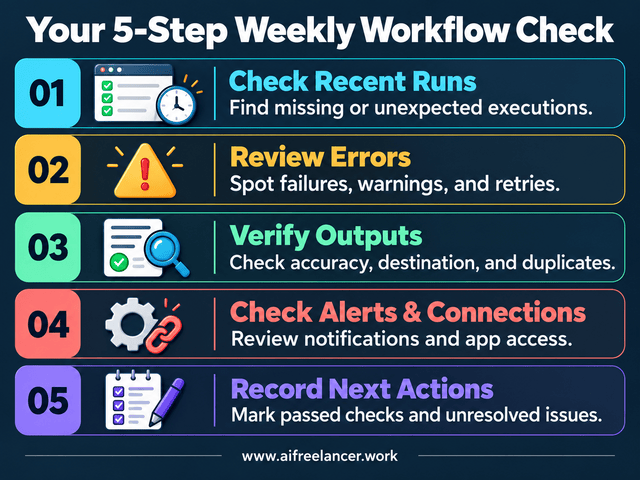
1. Check Recent Runs
Review each workflow’s execution history for the past week. Check whether each expected trigger produced a recorded run.
For scheduled automation, look for missing dates or unexpected gaps. For event-triggered automation, account for filters and conditions that determine which source events qualify.
Check how long your platform keeps execution histories and detailed logs. If important records expire before your weekly review, check those workflows more frequently or preserve the necessary information securely.
Suppose five client inquiry forms arrived, but the execution history shows only four runs. Find the five original submissions and match each one against the recorded executions using submission times, form IDs, or other available identifiers. Then examine the unmatched submission.
Check whether that fifth submission met the workflow’s trigger conditions. If it was intentionally excluded, the automation may have worked correctly. If it was eligible but produced no execution, investigate the trigger or connection responsible for starting the workflow.
2. Review Errors
Look for failed executions, recurring warnings, and repeated retries. Pay particular attention to errors that involve client information, payments, or deadlines.
Check whether an earlier error remains unresolved. If the same issue keeps appearing, record it for investigation rather than repeatedly restarting the automation without understanding the cause.
3. Verify Outputs
Open the latest result for each important workflow and compare it with the intended outcome. A successful execution may still have missing information or produce the wrong result.
Identify which application holds the authoritative information before checking the output. If the client inquiry form is the source, compare its submitted details with the project tracker entry. A successful transfer doesn’t guarantee accuracy when source information is incomplete or the destination contains outdated values.
Use three questions to verify the output:
- Destination: Did the result reach the correct application, folder, tracker, or recipient without creating duplicates?
- Completeness: Does it contain all required information, including important dates and client details?
- Notification: Did the intended person receive the expected notification or update?
For client inquiries, confirm that the project tracker contains the correct information and that the notification arrived. For automated publishing, check that the intended article reached the correct destination with the expected status. Review additional results when a workflow has recently changed or produced unusual output.
4. Check Alerts and Connections
Review unresolved error notifications and connection warnings. Confirm that your essential applications remain authorized and that important failure alerts are enabled. Focus on warnings, recent changes, and critical workflows where a disconnected application could interrupt important work.
5. Record Next Actions
Mark the workflows that passed your review and document any discrepancies requiring attention. Record the problem and your next action without creating a detailed report. Once you’ve completed the checks, stop reviewing workflows that appear healthy. Give your remaining attention to unresolved issues.
If you manage several workflows, review the most important ones first and rotate lower-risk checks instead of trying to inspect everything in one session.
For a small number of simple, already configured workflows, you could start with this illustrative time allocation: three minutes to check recent runs and review errors, five minutes to verify outputs, three minutes to check alerts and connections, and two minutes to record findings and next actions.
That’s approximately 13 minutes for a routine review. Initial setup and substantial troubleshooting require additional time.
Keep a Simple Monitoring Record
A monitoring record helps you distinguish a problem you already investigated from one that still needs attention. You can maintain it in a basic spreadsheet or document without creating a separate monitoring dashboard. Over several weeks, the same record can reveal recurring failures that need a more permanent solution.
For workflows that pass every check, a date and a simple Passed status may be enough. Save detailed notes for discrepancies that require investigation.
Here’s how a monitoring record might look when a client inquiry needs investigation:
- Workflow: Client inquiry to project tracker
- Expected result: Each eligible inquiry creates a complete project entry and sends a notification.
- Potential executions: Five submitted inquiries, subject to verification of trigger eligibility.
- Actual executions: Four.
- Output verification: All four recorded executions created complete project entries and sent the expected notifications.
- Last checked: October 19, 2026.
- Observed issue: One submitted inquiry has no corresponding execution. Its trigger eligibility remains unconfirmed.
- Status: Needs investigation.
- Next action: Check the submission against the trigger conditions, investigate why no execution appears, and determine whether the inquiry requires manual processing.
- Next check: If the inquiry was intentionally excluded, document that finding. If a malfunction is confirmed, test the correction and verify that future eligible inquiries create complete entries and notifications.
After checking the inquiry’s trigger eligibility, update the record to show whether the workflow functioned correctly or requires correction. If the missing inquiry represents an unanswered client request, address that obligation promptly rather than delaying the response until you’ve completed technical troubleshooting.
How to Keep Workflow Monitoring Simple and Sustainable
Your review uncovers a missing client inquiry, a delayed personal reminder, and a disconnected application. Which problem deserves attention first?
Start with the consequence. A client waiting for a response may require immediate action, while a harmless reminder can wait until you’ve finished more important work.
Know When to Fix, Pause, or Investigate
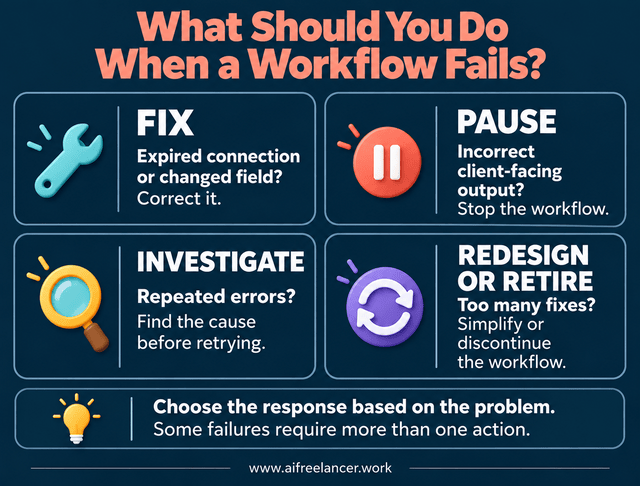
Finding an automation problem doesn’t always mean you should immediately retry the workflow. First, determine what went wrong and whether repeating the action could create another problem. An automation that sends incorrect invoices, publishes unintended content, or misses an urgent client inquiry may require immediate intervention.
Fix straightforward problems such as expired authorizations or changed field mappings. Pause workflows that produce incorrect client-facing results until you’ve corrected the problem.
Repeated errors deserve investigation before you retry an automation. If a workflow repeatedly fails or requires more maintenance than the value it provides, consider redesigning or retiring it.
If an investigation identifies a broken inquiry trigger, test the correction using a controlled submission where possible. Check that the process creates the intended record and notification without sending duplicate messages or creating duplicate entries. You only need to repeat this testing after correcting or meaningfully changing a workflow, rather than after every routine review.
Reduce Unnecessary Checks and Notifications
Monitoring should help you spot important problems without forcing you to watch execution logs throughout the day. Keep critical notifications active and group minor issues for scheduled review.
In Zapier’s 2026 small-business automation survey, 29% of surveyed owners reported concern about errors occurring while they weren’t watching. For workflows involving client deadlines or payments, enable failure alerts so you don’t have to depend entirely on your weekly review.
If a workflow saves ten minutes each week but regularly requires twenty minutes of checking and repairs, reconsider whether it’s worth maintaining. Track the time spent over several weeks before deciding whether to simplify, redesign, or retire the workflow, or handle the task manually. Building workflows that remain dependable over time can help reduce repeated repairs. Time isn’t the only measure of value. An automation may still be worth maintaining if it prevents costly mistakes or protects an important client commitment.
Use your existing automation platform’s monitoring features before considering another specialized tool. Once you’ve reviewed the necessary executions, checked key outputs, and logged unresolved issues, your weekly review is complete. Handle longer troubleshooting tasks separately unless a problem requires immediate attention.
What Is the Difference Between Workflow Monitoring and Workflow Management?
Workflow management involves designing, organizing, and controlling how tasks move through a process. Workflow monitoring focuses on checking whether those tasks execute correctly and produce the expected results. Monitoring is one part of managing a reliable workflow.
How Often Should You Monitor Automated Workflows?
Weekly checks can work for many low-risk freelance automations. However, workflows involving payments, urgent client requests, or important deadlines may require immediate alerts or more frequent monitoring. Choose a schedule based on the consequences of missed or incorrect results.
What Are the Most Important Workflow Monitoring Metrics?
Useful indicators include expected versus actual executions, failed runs, task completion, execution time, and output accuracy. Freelancers should prioritize measures that reveal whether important work happened correctly rather than tracking every available metric.
Can a Workflow Fail Even When the Automation Reports Success?
Yes. A platform may report successful execution even when an automation creates an incomplete record, sends information to the wrong destination, or generates inaccurate content. Checking the actual output helps identify these problems.
Can You Monitor Workflows Without Specialized Software?
Yes. Many automation platforms provide execution histories, error notifications, and connection-status information. You can combine these features with a simple spreadsheet or document to track weekly findings without investing in an additional monitoring system.
References
- Gillespie, L. (2026, September 22). 76% of SMB owners are automating work. The next step is making sure they’re doing it safely. Zapier.
- Talbert, M. (2026, April 17). How work about work gets in the way of real work. Asana.
- Zapier. (2026, May 29). View specific Zap run details. Zapier Help Center.
Final Thoughts
A missing client inquiry and an incomplete project entry reveal two different automation problems. Workflow monitoring helps you distinguish between executions that never occurred and runs that produced the wrong results.
Start with one important automation this week. Compare its eligible triggers with recorded executions, verify its latest output, and document anything requiring attention.
To build and maintain dependable AI-assisted freelance workflows, explore my books on automation, AI tools, and freelance systems on my Amazon Author page.

Florence De Borja is a freelance writer, content strategist, and author with 14+ years of writing experience and a 15-year background in IT and software development. She creates clear, practical content on AI, SaaS, business, digital marketing, real estate, and wellness, with a focus on helping freelancers use AI to work calmer and scale smarter. On her blog, AI Freelancer, she shares systems, workflows, and AI-powered strategies for building a sustainable solo business.