

You’ve spent hours perfecting a client draft. You hit send, feel relief, then realize you attached the wrong version. The client edits an outdated file, your notes are gone, and now you’re piecing work together at midnight. This isn’t a lack of skill; it’s a lack of structure. Document versioning fixes that by creating a clear record of every change, so you can focus on writing instead of damage control.
For freelance writers transitioning into AI-assisted workflows, versioning serves as your digital safety net. It’s how you stay organized, protect your best work, and build a reputation for reliability without turning into a tech specialist.
This problem has real costs. The Project Management Institute reports that poor documentation and version control contribute to rework that can consume up to 11% of total project costs, time that often goes unpaid for independent professionals.
Let’s start by establishing a simple foundation so that every draft has a clear home.
Everything I’ve shared here—and more—is in my book, available on Amazon. Click the link if you’re ready to take the next step.
Smart Document Versioning Basics
Your drafts fall apart when names and folders don’t mean anything. Get a simple system that makes every file findable in seconds—using AI business tools to label, sort, and retrieve what you need without digging through clutter.
This is not a minor time leak. McKinsey Global Institute estimates the average “interaction worker” spends nearly 20% of the workweek looking for internal information or tracking down colleagues who can help with specific tasks.
Document Versioning Naming Rules
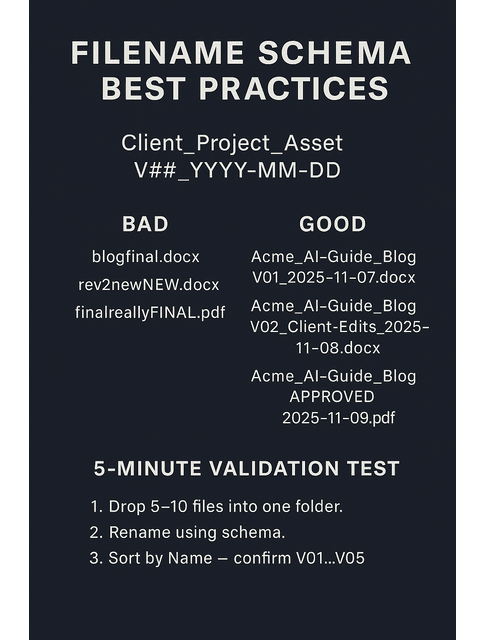
Every version starts with a name. A clean naming structure prevents chaos before it begins. Use a system like: ClientName_Project_Topic_V1_2025-11-07.
Make names short, sortable, and searchable. Stay consistent so your tools can group and organize versions independently.
How to build a foolproof naming convention (do this once, reuse forever)
Use this quick checklist to make your names durable and sortable:
- Order fields from general to specific: Client → Project → Asset → Version → Date.
- Use padded version numbers (e.g., V01, V02, V03) so lists sort correctly.
- Use a single date format: YYYY-MM-DD.
- Keep asset terms consistent: Blog, SalesPage, Email-Sequence.
- Lock in abbreviations once (e.g., FB-Ad, LP, TOFU) and adhere to them consistently.
Examples
- Acme_AI-Guide_Blog_V01_2025-11-07.docx
- Acme_AI-Guide_Blog_V02_Client-Edits_2025-11-08.docx
- Acme_AI-Guide_Blog_APPROVED_2025-11-09.pdf
Bad → Good filename mini-table (copy these patterns)
| Bad filename | Good filename |
| blogfinal.docx | Acme_AI-Guide_Blog_V01_2025-11-07.docx |
| rev2newNEW.docx | Acme_AI-Guide_Blog_V02_Client-Edits_2025-11-08.docx |
| finalreallyFINAL.pdf | Acme_AI-Guide_Blog_APPROVED_2025-11-09.pdf |
5-minute validation test
Confirm your schema sorts the way you expect:
- Drop 5–10 files into one folder.
- Rename using your schema.
- Sort by Name → confirm V01…V05 line up chronologically. If not, fix the padding or date order.
Batch-rename (copy-ready AI prompt)
You are a file-renaming assistant. Convert the following filenames to Client_Project_Asset_V##_YYYY-MM-DD. Keep extensions. Return a two-column table: OLD → NEW. Use padded versions (V01, V02).
Cleanup pathway for messy archives
Use this four-step mini-migration to tame old folders:
- Move all old files into /Archive/Intake.
- Run the batch-rename on Intake only.
- Spot-check 10% by opening files.
- Move into proper folders.
Once your filenames make sense, organize where those files live so you never hunt for “the right place.”
Folder Structure Blueprint
Create a folder map that matches your workflow: “Drafts,” “Edits,” “Finals,” “Published.” Store client-specific folders inside.
Reusable structure (paste and replicate per client)
Use this template verbatim and duplicate per client:
/Clients
/Acme
/Briefs
/Sources
/Drafts
/Edits
/Finals
/Published
/Admin
- Briefs: client brief, audience notes, brand voice.
- Sources: research, interviews, screenshots, PDFs.
- Drafts: your working documents only.
- Edits: returned drafts with tracked changes or comments.
- Finals: approved deliverables (PDF and DOCX).
- Published: live links, screenshots, social snippets.
- Admin: SOW, invoices, contracts.
Quick wins checklist
Stand up in a clean client space today:
- Create the folder tree for one client now.
- Choose a standard date format and abbreviation list.
- Save a text snippet of your schema for reuse in future projects.
AI assist
- Ask AI to generate a one-click setup checklist for new clients.
Your folders keep order between files—now add version history to keep order inside them.
Version History and Change Logs
Use Google Docs’ version history or Dropbox Rewind to review past edits without losing progress. If you prefer offline writing tools, consider setting autosave intervals to ensure your work is protected. Think of this as your undo button for entire days of work.
Practical tool workflows
Capture milestone snapshots so you can roll back safely:
- Google Docs: File → Version history → Name current version. Name milestones like Outline-Done, Draft-Complete, Client-Edits-Returned.
- Microsoft Word 365 + OneDrive: Click the filename → Version history → Save a note at each milestone.
- Dropbox: Use Version history per file; use Rewind to roll back a whole folder if needed (plan-dependent history).
- Obsidian: Use Obsidian Sync or a Git plugin to keep a timeline of changes (optional—skip if unfamiliar).
Change log habit (top of your working doc)
Keep one quick table for human-readable context:
- 2025-11-07 – V01 – First draft complete
- 2025-11-08 – V02 – Client edits integrated; headline options added
- 2025-11-09 – APPROVED – Final polish, metadata updated
With the basics set, let AI automate comparisons and checkpoints so you spend less time policing files and more time writing.
AI Automation for Document Versioning
You waste hours comparing drafts by eye. Let AI track changes, create snapshots, and surface what actually moved.
AI Diff Tools for Document Versioning
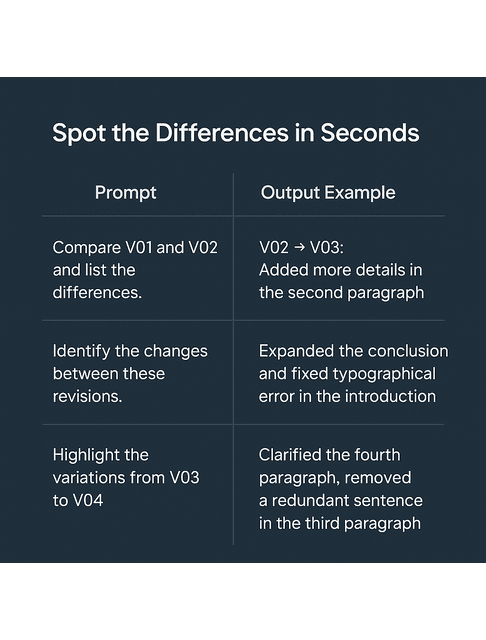
AI comparison tools can instantly show what has changed between two drafts, which is helpful when juggling multiple client reviews. ChatGPT or Draftable can summarize differences in tone, structure, and key edits. It’s like having an intelligent proofreader that tracks progress for you.
How to compare versions fast
Run this quick sequence whenever a new draft is ready:
- Paste old/new sections into AI with:
- “Compare these two versions. Summarize changes in structure, tone, and claims. Flag removed stats or sources.”
- Create a client-facing summary that you can paste into an email or cover sheet.
- Ask:
- “List any SEO-relevant changes (keywords removed/added, headings altered).”
Client-facing diff template (ready to reuse)
- Changes from V02 → V03:
- Reframed intro for clarity.
- Added H2 “3-2-1 Backup Rule.”
- Removed outdated Dropbox note.
- Net: +182 words; tone simplified.
Once you can see the differences clearly, capture them at the right moments so nothing important slips through the cracks.
Auto-Save and Snapshots
Enable autosave features in Google Docs, Notion, or Word 365. For large projects, use an AI assistant to create “snapshots” at milestones—such as “outline complete”, “draft done”, and “client reviewed”—so you can roll back any time.
Milestone checklist
Create consistent checkpoints you can trust:
- Snapshot at Outline approved.
- Snapshot at First full draft.
- Snapshot at Post-client feedback.
- Snapshot at Final approval.
Light automation ideas
Let tools nudge you to capture each checkpoint:
- Calendar or ClickUp automations prompt snapshots at milestones.
- Ask AI to draft a snapshot note: what changed, why it changed, and what to check next.
Even the best versioning system can break when multiple devices or users get involved—so guard against sync conflicts before they cost you time.
Conflict-Free Sync
Nothing ruins a day faster than overwriting your own work. Tools like Obsidian Sync or Git-based document systems prevent this by comparing file timestamps and saving both versions, ensuring that changes are preserved and not overwritten. If you’re less technical, ensure that only one device edits at a time while your AI-based cloud tool merges copies safely.
Conflict prevention rules
Follow these simple guardrails to avoid clashes:
- Don’t edit the same document on two devices simultaneously.
- If you worked offline, Save As a new version on reconnect, then merge.
- Use file locks where available; in Google Docs, coordinate editing windows.
Conflict resolution steps
If a conflict happens, resolve it cleanly and keep moving:
- Duplicate both conflicting copies.
- Run an AI diff to list differences by section.
- Accept non-controversial merges; note uncertain items.
- Save as V##_Merged_YYYY-MM-DD.
- Add a change-log entry summarizing decisions.
Copy-ready prompt
- “Compare these two files and produce a merge plan. Mark sections ‘accept as is,’ ‘needs review,’ ‘discard.’”
With automation and sync discipline in place, collaboration becomes safer and faster.
Collaboration and Document Versioning
Edits fall apart when people work in the wrong file. Set clear access, assign review lanes, and mark milestones to keep feedback organized and manageable.
Permissions and Roles
Keep control of your drafts: set collaborators to Comment, and share view-only links with clients until you sign off.
Access control that prevents chaos
Set roles once, and use them on every project:
- Default: Client = Viewer, Collaborator = Commenter, You = Editor.
- Temporarily promote someone to Editor for a defined window; revert after.
- Add a share note: “Please use comments only. I’ll consolidate approved edits in the next version.”
Review and Approval Workflow
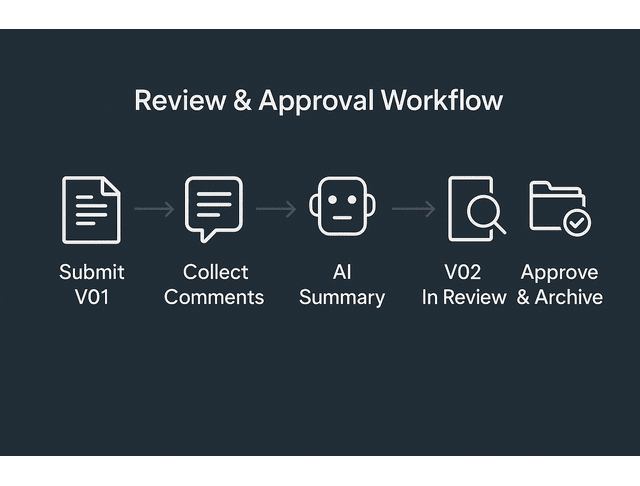
Notion AI and ClickUp log client approvals, attach notes, and create next-step tasks from version comments, ensuring your team always has access to the approved draft.
Lightweight approval pipeline
Run this same loop each round so feedback stays centralized:
- Submit V01 with a short cover note and change log.
- Collect comments in a single doc (no scattered feedback).
- Use AI to summarize open comments and propose edits.
- Publish V02 and mark the status In Review.
- Upon approval, export to PDF and store in Finals with ‘APPROVED’ in the filename.
Editing window SOP (example)
Block time so everyone knows when to act:
- Mon 10:00–14:00: Writer edits
- Tue 10:00–16:00: Client comments only
- Wed 10:00–12:00: Writer integrates; publish V03
Client message template
“Here is V03. Changes: intro simplified, new FAQ, 3-2-1 details. Please comment in-doc only. I will integrate by Wednesday, 12:00, and issue V04 for approval.”
After approval, the job shifts from editing to preservation and retrieval.
Client Handoffs and Archives
Use labeled milestones such as “Draft,” “Revised,” and “Approved.” Archive finished versions in folders labeled by date or stage. AI-based search can retrieve these in seconds, saving you from frantic folder dives when clients ask for an older draft.
Turnkey handoff pack
Package deliverables the same way every time:
- Final DOCX, final PDF, and a short What changed note.
- Links to the Published folder (live URLs, social snippets).
- Archive policy: Move V01, V02, and working files to /Archive/YYYY at month’s end to keep active folders lean.
The last layer is resilience: back up your work so a device failure never becomes a lost week.
Backup Strategy with Document Versioning
One laptop crash should never erase your work. Build a 3-2-1 backup routine that restores the exact draft you need, fast.
3-2-1 Backup Rule
Keep three copies of every project: two in local/cloud storage, one offsite. AI assistants, such as Google Drive’s backup scheduler or Dropbox’s automatic sync, can handle this with minimal input.
Accidental deletion is more common than most writers think. Backblaze’s 2024 survey found that 74% of Americans who own a computer have accidentally deleted important data.
A setup you can implement today
Stand up a reliable backup in under an hour:
- 3 copies: Working copy (computer), cloud copy (Drive/Dropbox), offsite copy (external drive or cloud backup like Backblaze).
- Automate Sync: Enable desktop sync for your main /Clients folder.
- Google Drive for desktop: Settings → choose Mirror files (keeps local copies for reliable offline work) or Stream files (cloud-first to save space). Most writers who draft offline prefer Mirror files.
- Weekly clone: Plug an external drive into your computer once a week and run a full folder copy.
Integrity Checks and Recovery Drills
Set a recurring AI reminder once a month to verify your backups. Make sure each copy opens, syncs, and matches the latest project file. It’s easier to fix small discrepancies now than rebuild a lost archive later.
One-page monthly routine
Run this quick health check and log the results:
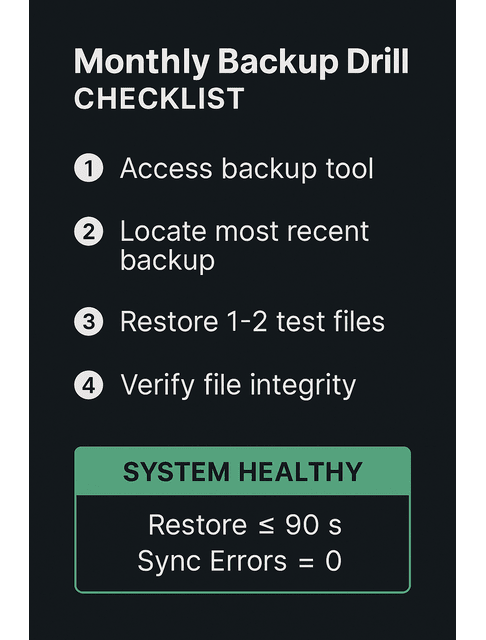
- Open and test a random sample of Finals and Drafts.
- Compare folder sizes (local vs cloud) to spot sync failures.
- Restore drill: Restore an older version of one file to confirm history works.
- Log it: date, files tested, fixes made.
Health thresholds to track
Measure success so you know your safety net holds:
- Sync errors = 0
- Restore time for any Final ≤ 90 seconds.
- Monthly random sample size ≥ 5 files
Success marker
If you can restore last month’s approved final in ≤90 seconds and your sync error count is 0, your system is healthy.
Even with solid backups, fast retrieval matters—find the exact draft in seconds with smarter search.
AI Search for Document Versioning
If you’ve ever forgotten where you saved something, AI can help. Use ChatGPT’s file-analysis features or Notion’s smart search to locate specific drafts based on phrases, topics, or client names.
Search like a pro
Use intent and metadata to zero in quickly:
- Intent queries: “Find the blog draft that mentions the 3-2-1 backup rule for Acme.”
- Metadata in queries: client, asset type, date.
- Saved filters: In Notion or Drive, save frequent searches like type:doc, client:Acme, tag:Approved.
Final Thoughts
Document versioning is not just a tech upgrade; it is creative insurance. Use it to recover the correct file quickly and to demonstrate reliability to your clients.
If you want a clear, beginner-friendly system for managing files, versions, and AI-assisted workflows without adding complexity, explore my books on my Amazon Author page. They walk you through practical setups you can apply immediately to protect your work and your income.
Frequently Asked Questions About Document Versioning
Document versioning tracks changes across drafts, allowing you to view, restore, or compare past versions. It’s essential for freelancers managing multiple clients or revisions because it prevents lost work and confusion.
Go to File → Version History → Name Current Version. Google automatically saves each version; naming them helps you retrieve key stages, such as “Outline,” “Client Edits,” or “Final Approval.”
Notion AI, Dropbox, and ChatGPT work well together—use Notion to summarize change logs, Dropbox for file history, and ChatGPT for quick version comparisons or rename prompts.
Versioning records the changes made within the document. Backups save whole snapshots. Together, they give control and a safety net.
Keep three copies of every file, two stored locally or in the cloud, and one offsite. Automate the process with tools like Google Drive or Backblaze to stay protected without manual effort.
We use the terms loosely. In software, it’s “version control”; in creative projects, it’s “versioning.” Either way, you’re tracking how a file changes.
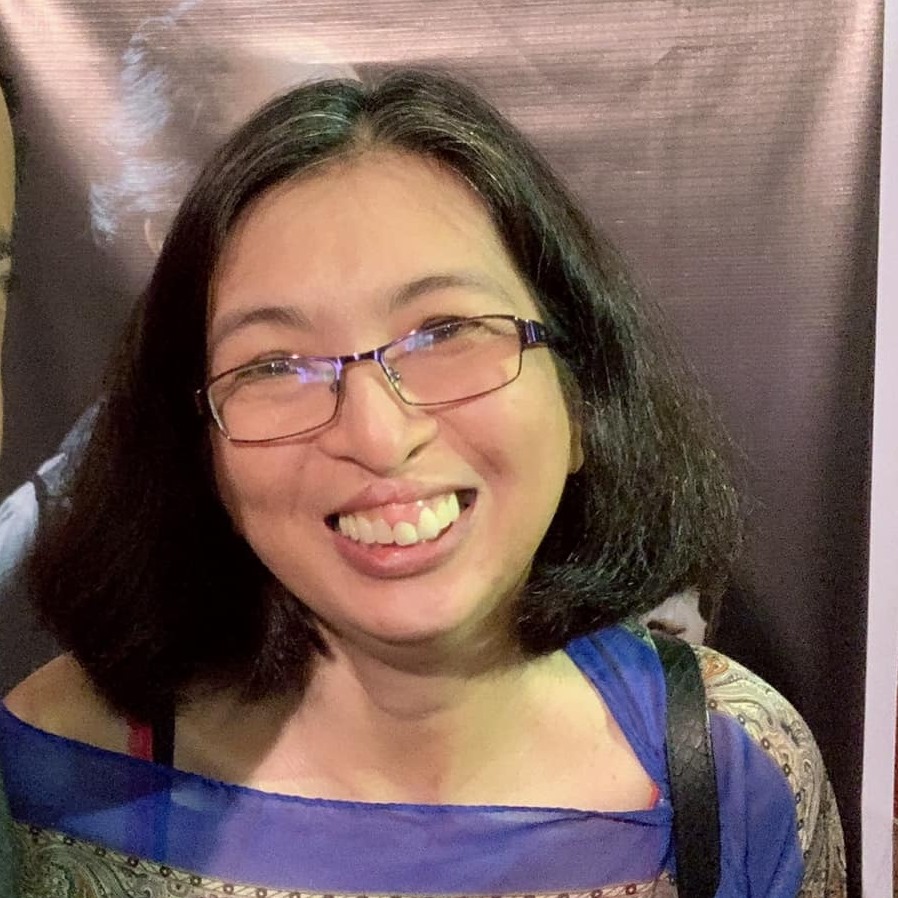
Florence De Borja is a freelance writer, content strategist, and author with 14+ years of writing experience and a 15-year background in IT and software development. She creates clear, practical content on AI, SaaS, business, digital marketing, real estate, and wellness, with a focus on helping freelancers use AI to work calmer and scale smarter. On her blog, AI Freelancer, she shares systems, workflows, and AI-powered strategies for building a sustainable solo business.


Pingback: AI Productivity Tools for Freelance Writers’ Workflow - The AI Freelancer