
You finish the draft, mark the task complete, update the deadline, and move on to the next project. Then, just as you settle into focused work, you remember one more thing: the client still needs an update. AI task automation can remove much of that repeated admin by turning information you have already recorded into a clear client-ready progress update.
That matters when you are juggling several clients at once. Microsoft’s 2025 Work Trend Index found that 80% of the global workforce reported lacking the time or energy to do their jobs, while employees were interrupted by a meeting, email, or ping every two minutes on average. Freelancers work differently from large teams, but the same pattern shows up when client emails, status checks, and routine updates keep breaking up focused work.
Used well, automation means spending less time reopening projects and rebuilding status emails from memory. If you are still building the foundations, start with simple systems for automating repetitive freelance tasks before connecting several tools or adding complicated rules.
What Is AI Task Automation for Client Updates?
You probably already automate simple tasks without thinking much about it. A calendar sends a reminder, a form creates a spreadsheet row, and an invoice system sends a receipt. AI becomes useful when the next step requires interpreting or rewriting information rather than merely moving it from one place to another.
IBM defines task automation as the use of technology to complete or augment tasks and workflows, particularly repetitive or time-consuming work. AI task automation adds capabilities such as summarizing, interpreting text, extracting useful information, and generating a suitable response.
For client updates, the basic workflow looks like this:
task changes → automation starts → project data is collected → AI creates an update → you review or send it
That is different from asking ChatGPT to write a status email from scratch. The AI is working from project information your system already contains.
How AI Task Automation Turns Task Data Into an Update
Suppose you are writing a long-form article for a client. Your project manager contains these details:
- Task: First draft
- Status: Complete
- Completion date: August 15
- Next task: Client review
- Deadline: August 18
- Blocker: None
- Note: Internal links added, and citations checked
A traditional automation can detect that you changed the status to Complete. AI can take the additional step of deciding what the client needs to know and turning those fields into something readable. Using a simple three-part format for client progress updates keeps that information focused on what was completed, what happens next, and anything holding up the work.
Done: The first draft is complete, including the internal links and source checks.
Next: The draft is ready for your review. I can begin revisions once I receive your feedback.
Blocked: Nothing is holding up the project right now.
This type of status generation is already a recognized AI automation use case. Slack’s guide to AI task automation describes tools generating task summaries, progress reports, deadline notifications, and next-step recommendations from project activity.
Make Your Task Manager the Single Source of Truth
The automation cannot know something you never recorded. If a deadline changes from Friday to Monday but the old date is still sitting in your task manager, AI may confidently send the wrong deadline. If a task says Complete while a required client approval is still missing, the resulting update could be misleading. Keeping one reliable version of project information for you and the client also reduces the risk of outdated files, conflicting changes, and uncertainty about which information is current. The automation cannot know something you never recorded. If a deadline changes from Friday to Monday but the old date is still sitting in your task manager, AI may confidently send the wrong deadline. If a task says Complete while a required client approval is still missing, the resulting update could be misleading.
Your task management system therefore needs reliable fields for the information you expect AI to use:
- client and project name
- task status
- completion date
- next step
- deadline
- blocker or dependency
- relevant project notes
For a more reliable workflow, you can make a few fields mandatory before the automation runs:
- client-facing status
- next step
- due date
- blocker or dependency
- client action required: yes or no
This does not mean documenting every thought. Record the facts the client update depends on, and when a required field is missing, the safer automation is not “figure it out.” It is “stop and ask me.”
Why AI Task Automation Works Well for Client Communication
Client updates rarely feel like major work, which is why they are easy to underestimate. Ten minutes here, another ten minutes there, then another status email because someone asked where the project stands. The higher cost is often the context switch: reopening the project, remembering what changed, deciding what matters, writing the message, checking it, and then finding your way back into the work you were doing.
Asana calls activities such as communicating about tasks, finding information, and managing shifting priorities “work about work.” Its Anatomy of Work research surveyed more than 10,000 knowledge workers globally and found that 60% of the average workday was spent communicating about tasks, hunting down documents, and managing shifting priorities.
Client reporting is necessary, but reconstructing the same project information twice is not.
AI Task Automation Reduces Repetitive Client Admin
Imagine you manage six active clients and send each one a weekly status update. Without automation, you may have to open six projects, scan what happened, reconstruct the week’s progress, and write six separate messages.
With a basic automated workflow, the system has already gathered the relevant changes. Instead of starting from a blank email, you review something like:
- Done: Landing-page copy completed.
- Next: Homepage revisions start Monday.
- Blocked: Waiting for approval on the new value proposition.
You are still responsible for the message. You are simply no longer doing the mechanical part from scratch.
Microsoft’s 2026 Work Trend Index analyzed more than 100,000 privacy-preserving Microsoft 365 Copilot chats and found that 49% of conversations supported cognitive work such as analyzing information, solving problems, evaluating, and thinking creatively. The remaining conversations were classified as working with people, finding information, or producing work.
For freelancers, that suggests a practical use for AI: let it organize the routine project information, then decide for yourself what belongs in the client message.
Consistent Project Updates Build Client Confidence
Clients usually do not need a minute-by-minute account of your work. They need enough information to answer three questions:
- What has been completed?
- What happens next?
- Do you need anything from me?
A predictable progress report gives them those answers before they have to ask. It can also reduce the “Just checking in” messages that break your concentration. Clients know when to expect an update instead of wondering what is happening.
Once you know which updates are worth automating, the next question is how to build the workflow without overcomplicating it.
How to Build AI Task Automation for Client Updates
The easiest way to make automation unnecessarily difficult is to start with the tools. Start with the repetitive client update instead.
You need four basic parts:
task manager → automation workflow → AI → communication channel
Your task manager might be ClickUp, Asana, Trello, Notion, or another project management tool. An automation platform can watch for the trigger, pass the relevant project data to an AI model, and place the result in email, Slack, or another client communication tool. You do not need a sprawling technology stack. The best setup is the smallest one that removes real work. The same principle applies when you keep your AI workflow stack small and purposeful instead of adding tools simply because they are available.
A realistic setup might look like this:
ClickUp task marked Complete → Make or Zapier pulls the task fields → AI formats Done, Next, Blocked → Gmail draft is created
That is enough to automate the repetitive preparation while you stay in control of what gets sent.
Choose the Client Update You Want to Automate
Do not begin with “automate all client communication.” Choose one message you send repeatedly.
Good candidates include:
- milestone-completion updates
- weekly status reports
- task-completion notices
- approval requests
- routine deadline confirmations
The strongest candidates share several characteristics. They happen regularly, rely on information you already track, follow a predictable format, and usually do not require negotiation. A weekly progress report fits well, while a message explaining why you missed a deadline does not.
Once you have chosen the type of update, decide which project events should actually trigger it.
Decide Which Task Changes Are Worth Sending to a Client
A task change is not automatically a client update. You might mark “check H2 formatting” complete, and the client does not need to know. You might change the project deadline by three days, and they probably do.
Useful client-facing triggers include:
- deliverable completed
- milestone reached
- next phase started
- client approval required
- meaningful deadline changed
- blocker affecting delivery
Internal activity can usually stay internal:
- minor edits
- research notes
- administrative changes
- routine subtasks
- personal reminders
A useful rule is simple: automate meaningful changes, not every activity.
Set the Trigger and Connect Your Project Data
The trigger is the event that starts the workflow. For example:
When task status changes to Complete → start automation
The automation then retrieves the project fields AI needs:
- Client: Northstar Consulting
- Deliverable: SEO article draft
- Status: Complete
- Next step: Client review
- Due date: August 18
- Blocker: None
- Notes: Sources checked, internal links added
Those fields become the input to the AI step. With a workflow, you do not have to paste the project context into a chatbot each time because the automation already knows which task caused the trigger.
Use AI Task Automation to Format the Client Message
Once AI receives the project data, give it clear instructions about what the output should contain.
For example:
Write a concise client progress update using only the project information provided. Organize it into Done, Next, and Blocked. Use plain professional English. Do not infer missing facts, dates, commitments, or reasons. Exclude internal notes unless they clearly affect the client. If a section has no relevant information, omit it rather than filling space. If a deadline, blocker, or client action is unclear, flag the message for review instead of guessing.
Now consider this input:
- Article draft completed
- Sources verified
- Internal links inserted
- Client review due August 18
- No blocker
AI might create:
- Done: The article draft is complete. I have also verified the sources and added the planned internal links.
- Next: The draft is ready for your review by August 18.
- Blocked: No blockers at this stage.
You can then remove anything unnecessary, adjust the tone, and send it. At that point, you have a usable draft instead of a blank email.
Once the AI can generate the message, the next step is making sure it organizes the information the same way every time.
Turn Done, Next, Blocked Into Automation Logic
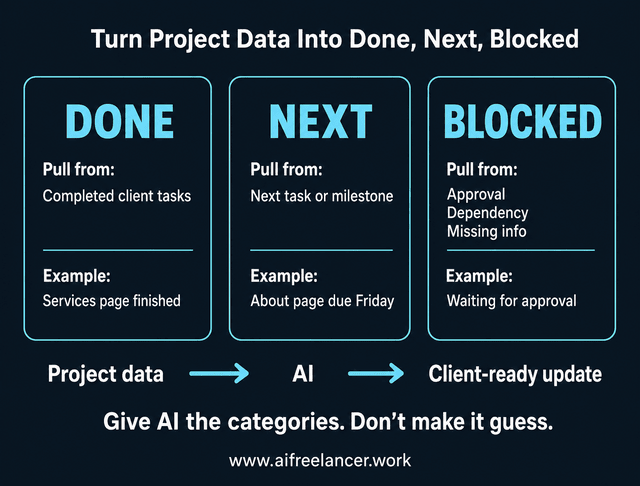
Done, Next, Blocked is more useful when it becomes part of the system instead of merely a message template. Each category can pull from a different part of your project data:
- Done: completed client-relevant tasks since the previous update
- Next: the next planned task or milestone
- Blocked: unresolved approval, dependency, missing information, or client action
This gives AI less freedom to invent the structure of the update. If nothing is blocked, the system can simply say there are no blockers or omit that section. If a client approval is missing, it belongs under Blocked rather than being buried in a paragraph.
Add Conditional Logic Before AI Generates the Message
A dependable automation should make a few basic decisions before creating anything. A completed milestone can produce a draft immediately, several small internal changes can wait for the weekly summary, an approval request can be classified as Blocked, and a task tagged “internal only” can be ignored.
These simple rules stop every project event from becoming an email.
Choose When the Client Should Receive the Update
There are three useful approaches:
- Event-based updates: Send or draft an update when something important happens, such as completing a deliverable.
- Scheduled summaries: Gather project changes and create one daily or weekly update.
- Hybrid updates: Batch routine progress but surface important blockers as soon as they appear.
For many freelancers, scheduled or hybrid updates make the most sense. A practical hybrid rule could be: routine task changes stay in the project log until Friday afternoon, while any blocker marked “client action required” creates an immediate draft for review. If you complete seven small tasks in one afternoon, sending seven messages would technically be automation. It would also be annoying.
AI Task Automation Should Not Handle Every Client Message
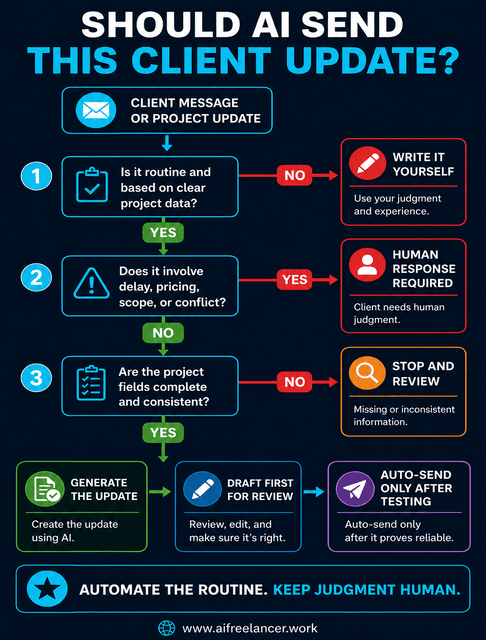
The automation working correctly does not mean the message should be automated. Routine status reporting is different from messages about delays, mistakes, pricing, scope, or an unhappy client.
A client asking when the next draft will arrive may be easy to handle from structured project data. A client who is unhappy because you missed the original deadline deserves a response from you.
When Client Communication Needs Human Judgment
Keep communication human-led when it involves:
- missed deadlines
- mistakes
- scope disputes
- price or contract changes
- difficult feedback
- unhappy clients
- sensitive project problems
Suppose the automation sees:
- Status: Delayed
Original deadline: August 15
New estimate: August 18
It could easily generate:
The deliverable has been moved to August 18.
Technically accurate, but relationally poor. The client may need an explanation, acknowledgment, revised plan, or discussion about consequences, and that requires judgment rather than summarization.
Human judgment is one limit. Technical failure is another.
Build Basic Failsafes Into the Workflow
Your workflow also needs to know what to do when the technology itself fails.
Useful safeguards include:
- missing required data → stop
- contradictory dates → flag for review
- duplicate trigger → suppress duplicate message
- malformed AI response → do not send
- automation failure → notify you, not the client
Give each failure a clear outcome. If the deadline is missing, for example, the workflow can create a draft without a date and add “REVIEW REQUIRED” for you. If the task says Complete but the blocker field says “waiting for client approval,” the workflow should stop instead of choosing which field to believe. If the same completion trigger fires twice, the second message should be ignored.
Also limit what project data goes into the AI system. Client notes may contain unpublished material, proprietary information, personal data, or details that have nothing to do with the update. Before connecting any AI tool to client work, review its current privacy, security, and data-retention policies and make sure your use complies with your client agreements.
A Simple Task-to-Client-Update Workflow
Once the pieces are in place, the system is fairly straightforward:
- A task or milestone changes.
- The workflow checks whether the change matters to the client.
- Relevant project data is collected.
- AI categorizes the information as Done, Next, or Blocked.
- AI turns the data into a short client-ready update.
- Routine updates are drafted or sent.
- Sensitive updates are routed to you for review.
- The update is logged.
If the inputs are accurate and the stop rules are clear, the workflow has much less room to go wrong.
Example of an Automated Client Update
Suppose your task manager contains:
- Project: Website copy
- Task: Services page
- Status: Complete
- Completed: August 15
- Next: About page
- Next deadline: August 17
- Blocker: Awaiting testimonial approval
- Internal note: Competitor positioning revised
The automation can ignore the internal note and generate:
- Done: The Services page copy is complete.
- Next: I’ll work on the About page next, with the draft scheduled for August 17.
- Blocked: I’m waiting for approval of the testimonial before I add it to the final copy.
You check the message, make any necessary adjustments, and move on. Instead of reopening the project later and piecing the status together again, you already have the update in front of you.
Test the Workflow Before You Fully Automate It
Do not begin by giving the system permission to send everything automatically. Start with drafts.
Compare the generated updates with the messages you would normally send and watch for recurring problems. Maybe AI includes too much internal detail, interprets “waiting” as a blocker when no client action is actually required, or reveals that your task manager simply does not contain enough information yet.
A sensible progression is:
- generate draft only
- review every output
- refine prompts and project fields
- test across different project situations
- allow automatic sending only for stable, low-risk cases
A useful standard is simple: if reviewing and repairing the automation takes as long as writing the update yourself, the workflow is not ready.
Is This Client Update Worth Automating?
Automation is supposed to remove work. If building and maintaining the system becomes another hobby, it has missed the point.
A client-update workflow is more likely to be worthwhile when:
- you send the update repeatedly
- the project information is already tracked digitally
- the message follows a predictable structure
- you manage several active clients or projects
Manual communication may still be easier when:
- updates are rare
- every message is highly individual
- your project data is inconsistent
- the conversation regularly involves negotiation or judgment
A practical threshold is to test automation when the same type of update comes up several times a week or across several clients. If it keeps forcing you to reopen projects simply to reconstruct what happened, start with task completed → Done/Next/Blocked draft generated and see whether the draft actually saves you effort before automating anything further.
What is AI task automation?
AI task automation uses artificial intelligence together with workflow tools to perform or assist with repetitive tasks that previously required manual work. For client reporting, it can collect project information, summarize changes, and generate a draft status update. IBM’s explanation of task automation provides the broader foundation for how these automated workflows work.
Can AI automate repetitive tasks?
Yes. Repetitive work that involves summarizing information, categorizing data, drafting routine messages, or extracting details is often a good candidate. A freelancer’s weekly progress update is one example when the project information is already organized and current. Microsoft’s guide to AI automation explains how AI can support repetitive workflows that require more than simple rule-based automation.
What tasks can AI automate?
Common candidates include summarizing information, generating routine reports, classifying requests, creating reminders, drafting messages, extracting information, and triggering follow-up actions. For freelancers, automated status updates and progress reports can be useful because they rely on information already recorded during project work. Slack’s AI task automation guide includes similar uses such as status reports, summaries, notifications, and next-step recommendations.
Can AI automatically send client updates?
Yes, but automatic sending should be reserved for predictable, low-risk messages. A safer starting point is to let AI generate the update and require your approval before it goes to the client. Messages involving delays, conflict, scope, pricing, or sensitive issues should remain human-led.
How do you automate a project status update?
Start with a trigger in your task management software, such as completing a milestone. Pass the relevant task data into an AI step, instruct the AI to summarize it using a consistent status format, and then route the output to email or another communication channel. Slack’s guide to AI workflows identifies automatically collecting and sharing project status reports as a practical AI workflow use case.
Final Thoughts
AI task automation is most valuable when it removes work you should not have to repeat. Start small, keep your project data clean, and use automation where the message follows a predictable pattern.
The payoff is simple: fewer status emails to rebuild from memory at the end of the day, while you keep control of the messages that actually require judgment.
If you want more practical systems for using AI without turning your freelance business into another source of complexity, explore my books on writing, freelancing, AI, and sustainable work on my Amazon Author page.
Sources
- Microsoft — The 2025 Annual Work Trend Index: The Frontier Firm Is Born — https://blogs.microsoft.com/blog/2025/04/23/the-2025-annual-work-trend-index-the-frontier-firm-is-born/
- IBM — What Is Task Automation? — https://www.ibm.com/think/topics/task-automation
- Slack — AI Task Automation Guide — https://slack.com/blog/productivity/ai-task-automation-guide
- Asana — The Anatomy of Work: Why Work Isn’t Working — https://asana.com/resources/work-isnt-working
- Microsoft — 2026 Work Trend Index: Agents, Human Agency, and the Opportunity for Every Organization — https://www.microsoft.com/en-us/worklab/work-trend-index/agents-human-agency-and-the-opportunity-for-every-organization
- Microsoft Copilot — What Is AI Automation? — https://www.microsoft.com/en/microsoft-copilot/copilot-101/ai-automation
- Slack — AI Workflows: What They Are and Why They Matter for Businesses — https://slack.com/blog/transformation/ai-workflows-what-they-are-and-why-they-matter-for-businesses

Florence De Borja is a freelance writer, content strategist, and author with 14+ years of writing experience and a 15-year background in IT and software development. She creates clear, practical content on AI, SaaS, business, digital marketing, real estate, and wellness, with a focus on helping freelancers use AI to work calmer and scale smarter. On her blog, AI Freelancer, she shares systems, workflows, and AI-powered strategies for building a sustainable solo business.